
Understanding SOLIDWORKS Events, Interoperability, and How They Can Transform Your Macros
Many of us have recorded a macro using the built-in VB editor in SOLIDWORKS, hoping to run it later successfully. After all, not every SOLIDWORKS command can be recorded. Others have opened the editor and tried to build a macro from scratch, guided by the abundance of tutorials, forums, and examples available online.
If you fall into one of these groups, or if you’re simply curious about what can be done with the VB editor, I want to introduce you to a couple of concepts the macro recorder does not take into account, concepts that not everyone knows about, but which open the door to a whole new world of automation possibilities:
SOLIDWORKS Events, Interoperability, and later, SOLIDWORKS Document Manager.
Let’s begin by understanding these events referred to as Delegates in the SOLIDWORKS API documentation.
What Are SOLIDWORKS Events?
As the name suggests, events are specific moments or actions within SolidWorks that the API allows you to “listen” to. Examples include:
- Opening a document
- Changing a custom property
- Selecting anything on screen
Internally, all these are events, and the API lets us respond to them programmatically.
The goal of this article is to help you understand:
- What these events are
- How to listento them
- And how to leverage them so your automations don’t only run when you press a button, they can also react automatically to user actions inside SOLIDWORKS.
We won’t be building full macros here, but we will use code snippets to illustrate how everything works.
Exploring Events in the Local API Help
Open the local API Help installed with SOLIDWORKS.
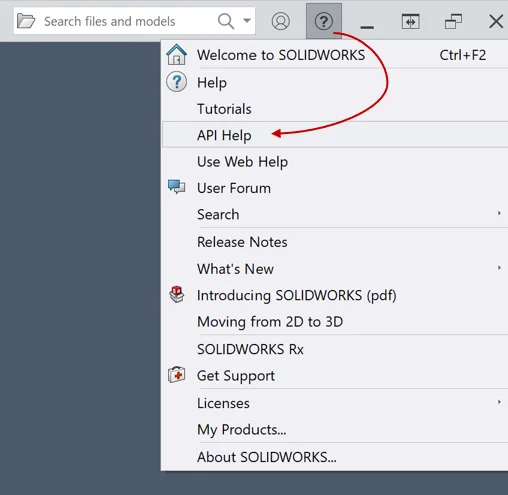
Inside the Content section, you’ll find a node called Delegates. This is where SOLIDWORKS lists all the events available for your installed version.
You can categorize them like this:
- Application: DSldWorksEvents
- Assembly: DAssemblyDocEvents
- Drawing: DDrawingDocEvents
- Part: DPartDocEvents
- Feature Manager: DFeatMgrViewEvents
- Model View: DModelViewEvents
- Mouse: DMouseEvents
- Property Sheet: DSWPropertySheetEvents
- Task Pane: DTaskpaneViewEvents
Personally, the ones I use most are the events tied to the active document, but it’s worth exploring them all, many are extremely descriptive and include detailed documentation right in the API Help.
One important detail: these delegates cannot be called manually. SOLIDWORKS exposes them internally, and they fire automatically with the appropriate parameters whenever the event occurs.
Creating a Macro to React to Selection Events
Let’s look at how to detect a selection inside the SOLIDWORKS interface. Start by creating a new macro in the VB editor.
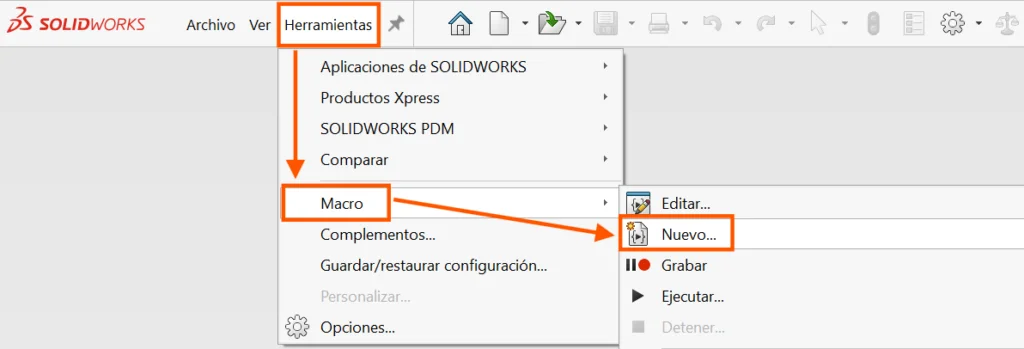
1. Clean up the default module
2. Strong-type the SOLIDWORKS application object
3. Create a Class Module for Handling Events
4. Initialize the Class
5. Capturing the Selection Event
To Learn about Interoperability: Communicating Between SOLIDWORKS and Excel and read the full article, click here.
Click here to learn more, get a quote, or contact an expert at The SolidExperts.
Want to learn more and take a deep dive into SOLIDWORKS? Check out our upcoming training classes to enhance your SOLIDWORKS skills. All classes are offered in person and virtually.



SUBMIT YOUR COMMENT